
Personalized Outbound Strategy
Get The Right Outbound Strategy In Minutes
Enter your email to get a custom plan & stack recommendation for your business
It's being carefully crafted by AI
Please check your mailbox in 5 minutes
Choosing a business email service isn’t just about getting a custom domain address, especially if you’re planning to use it for cold email.
If Titan Email is on your shortlist, you’re likely asking yourself: Can this handle cold outreach, follow-ups, and email tracking properly?
To make this easy for you, I tested 15 key Titan Email features, including email templates, scheduled send, follow-up reminders, admin controls, and security features.
In this Titan Email review, I walk you through each step by step, so you can clearly see what Titan offers and decide if it fits your business needs.
Scale your outreach with Mailforge at $2–$3 per mailbox.
Titan Email is a business email service made for professionals and small businesses.
It lets you create a custom email address using your own domain name, like name@yourbusiness.com.

It works as an email hosting service. This means you can send and receive emails, store your messages, and manage your mailboxes through Titan.
You don’t need a website to use Titan, but you do need your own domain name.
Titan also partners with GoDaddy to offer professional email services.
Titan is built to help businesses manage customer conversations with tools designed for business communication.
To evaluate Titan Email properly, I examined 15 core features and tested how each supports cold email outreach.
Here’s a clear breakdown of each feature and how it works.
When I tested this, it saved me time on repeated replies, but most of the templates are generic and not optimized for email outreach.
In cold outreach, timing matters. This allowed emails to be sent during business hours instead of odd times.
But it works for single emails only. It does not support automated multi-step outreach sequences.
During testing, this removed the uncertainty for me. I could clearly see when an email was opened.
However, it only confirms the open. It does not provide deeper performance data for outreach tracking.
If you’re running cold email at scale, inbox placement matters as much as open tracking.
Tools like Warmforge focus on improving and monitoring deliverability.
But the follow-up must still be written and sent manually.
There is no automated follow-up flow.
This helps make your message look more professional and trustworthy.
However, the design options are basic and limited to standard business details.
It helped to write emails in a cleaner and more professional format. Adding links and images directly inside the message was straightforward and easy to manage.
However, it focuses on basic formatting and is not designed for advanced outreach personalization.
During testing, this helped to track replies once a prospect responds. Conversations stay organized in one place.
However, it does not add automation or campaign-level tracking features.
It helped separate replies from regular inbox messages.
But filters need to be set up manually, and there is no built-in outreach-specific reply management system.
This made it easier to find older emails without scrolling through the inbox. I could search and locate messages much faster.
However, it still depends on using the right keywords or details to get accurate results.
When I tested this, it gave me a short safety window to catch quick mistakes before the email was delivered.
However, the time to cancel is limited, so you have to notice the error immediately.
When I tested this, switching between accounts was simple and saved time. I didn’t need to log out and log back in repeatedly.
However, inboxes remain separate and are not merged into a unified outreach dashboard.
It made scheduling easier because others could see my availability without long email exchanges.
However, full calendar sharing mostly works with other Titan users, which makes it less flexible when working with people outside the platform.
Switching views helped me see my schedule more clearly. The weekly view was useful for a quick overview.
However, the layout is simple and may feel basic if you’re used to more advanced calendar tools.
When I tried this, sending invites outside Titan worked smoothly. It helped avoid compatibility issues.
But this feature focuses only on sending invites. It doesn’t add deeper collaboration tools beyond scheduling.
While testing, I could handle mailbox setup and basic domain controls from one place. But the controls stay centered around standard email management.
If you’re looking for deeper infrastructure-level configuration, the flexibility feels limited.
After testing Titan Email in cold email use, here are the main pros I noticed.
These are the limitations I noticed while using Titan Email
Before choosing Titan Email, it helps to clearly understand the type of business it fits best, and where it may not be the right choice.
From this, it’s clear that Titan Email can support you well in the early stages of business communication.
But when cold email becomes a serious growth channel, where you need to scale domains, manage multiple mailboxes, and protect deliverability, a regular email setup may not be enough.
At that stage, you need a solution built specifically for cold email infrastructure. In such cases, infrastructure tools like Mailforge help you.
Mailforge is a distributed cold email infrastructure tool built specifically for outreach.
It allows businesses to create and manage hundreds of domains and mailboxes.
The system uses shared IP infrastructure optimized for cold email deliverability.
When you add a domain, it automatically configures DNS records like SPF, DKIM, DMARC, and custom tracking.
This removes the need to manually manage DNS settings.
Mailforge also supports bulk DNS updates, which means you don’t have to configure each domain one by one.
If you’re managing multiple domains, this saves time and reduces repetitive setup work.
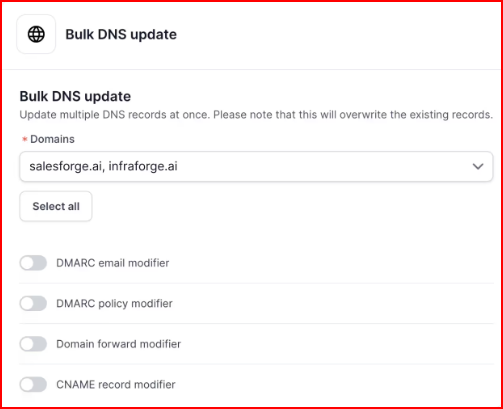
It also allows domain transferring, so if you need to move domains into the system, you don’t have to rebuild everything from scratch.
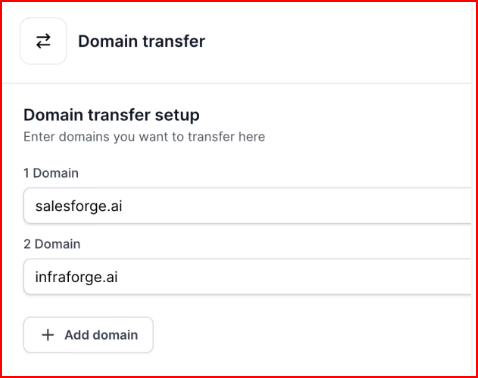
Mailforge does not replace your sending tool. Instead, it works alongside tools like Salesforge or any other sending software.
You use your sending tool to run campaigns, while Mailforge handles the infrastructure behind it.
If you need dedicated IP infrastructure instead of a shared IP setup, you can choose Infraforge, which gives greater control and isolation.
Mailforge pricing is offered per mailbox and remains affordable, starting around $2–$3 per mailbox per month, making it practical for scaling outreach operations.
Enter your email to get a custom plan & stack recommendation for your business
Please check your mailbox in 5 minutes

Titan Email works well for small businesses that need structured and professional daily communication.
It helps manage conversations, track email opens, schedule messages, and handle basic account management in one place.
However, when your goal shifts from managing communication to scaling outreach, the needs change.
Running larger campaigns, managing multiple domains, and setting up many mailboxes requires stronger infrastructure support.
In such cases, you need infrastructure-focused tools like Mailforge.
Mailforge helps you set up domains and mailboxes in minutes, automates DNS configuration, and supports scaling outreach using a distributed email infrastructure built for cold email.
Start with Mailforge! Set up and scale your cold email infrastructure in minutes